
App User Guide
IMPORTANT PLEASE READ BEFORE CONTINUING
1. Getting started with Toucan Collect (iPhone users)
Before your organisation can use the Toucan Collect app on iPhones, the person who signed up for the service will receive an email from Toucan Giving. This email includes a QR code.
The QR code must be scanned on an iPhone to agree to Apple’s Terms of Service. Once this has been completed, other iPhone users in your organisation will be able to join and take part in a campaign on their own devices.
This step is only needed for iPhone users. Android users do not need to complete this step.
If you have not received the QR code, please contact us at cs@toucangiving.com and we’ll be happy to help.
2. Create a Fundraiser Account
If you already registered for Toucan Collect through our portal, you can skip this step. Just log in using the same email address and password.
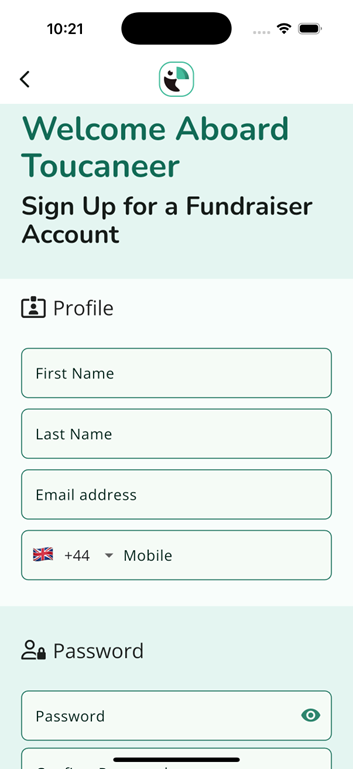
If you’re new, simply fill in your profile details on the screen and choose a password to get started.
3. Verify your email address
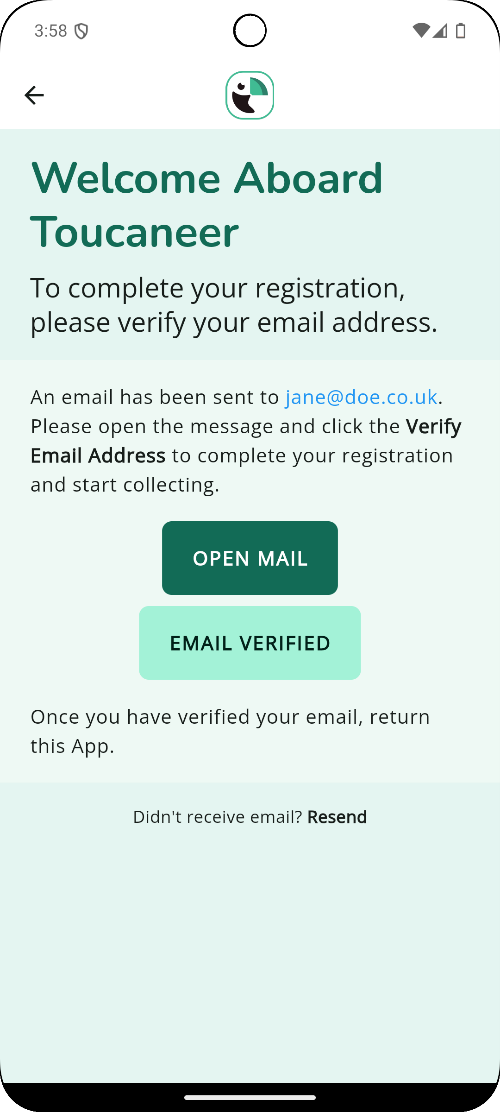
We'll send a verification email to your inbox with a link to confirm your email address.
You can quickly access your mailbox by clicking the Open Mail button in the Toucan Collect app.
4. Logging in
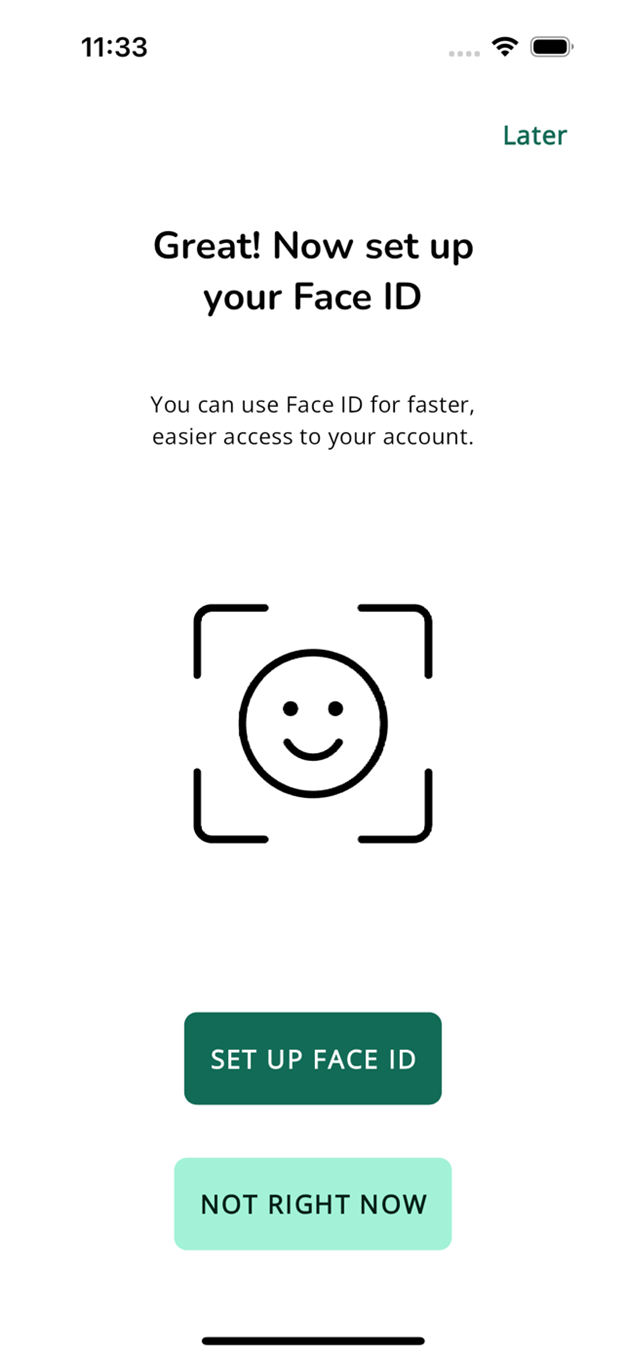
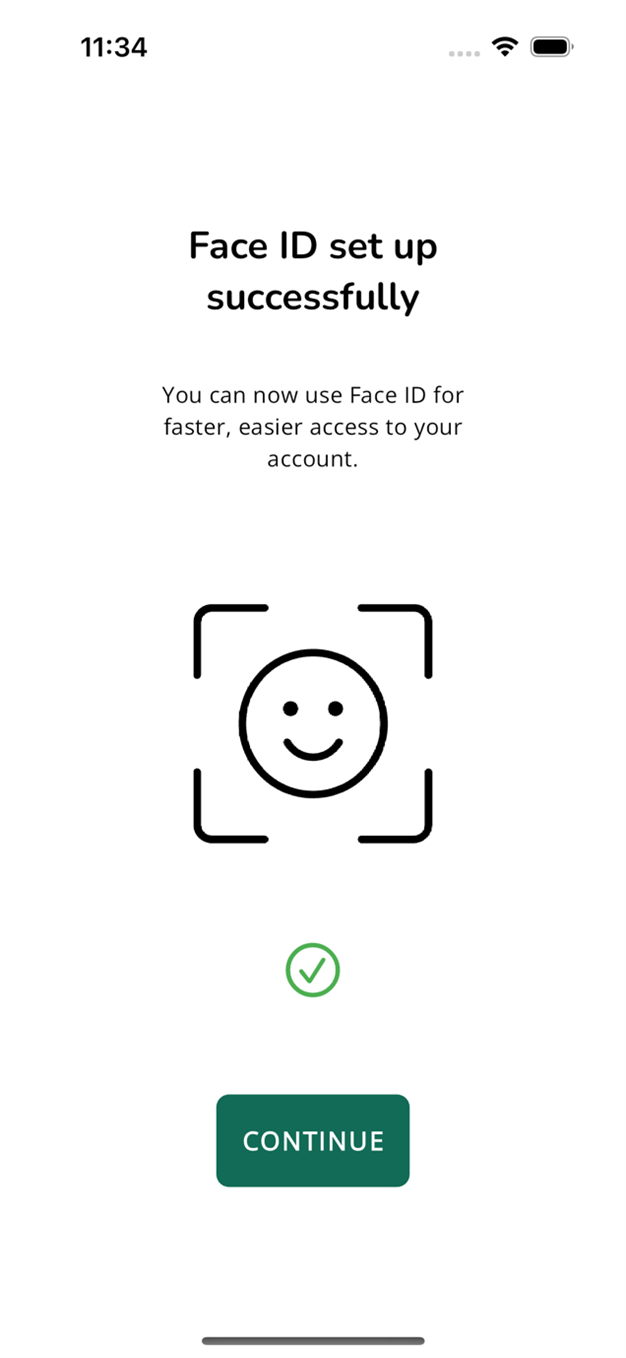
When you log in for the first time, you’ll be asked if you’d like to set up Face ID for quicker access to your account.
You can choose to use Face ID or continue logging in with your username and password, whatever works best for you.
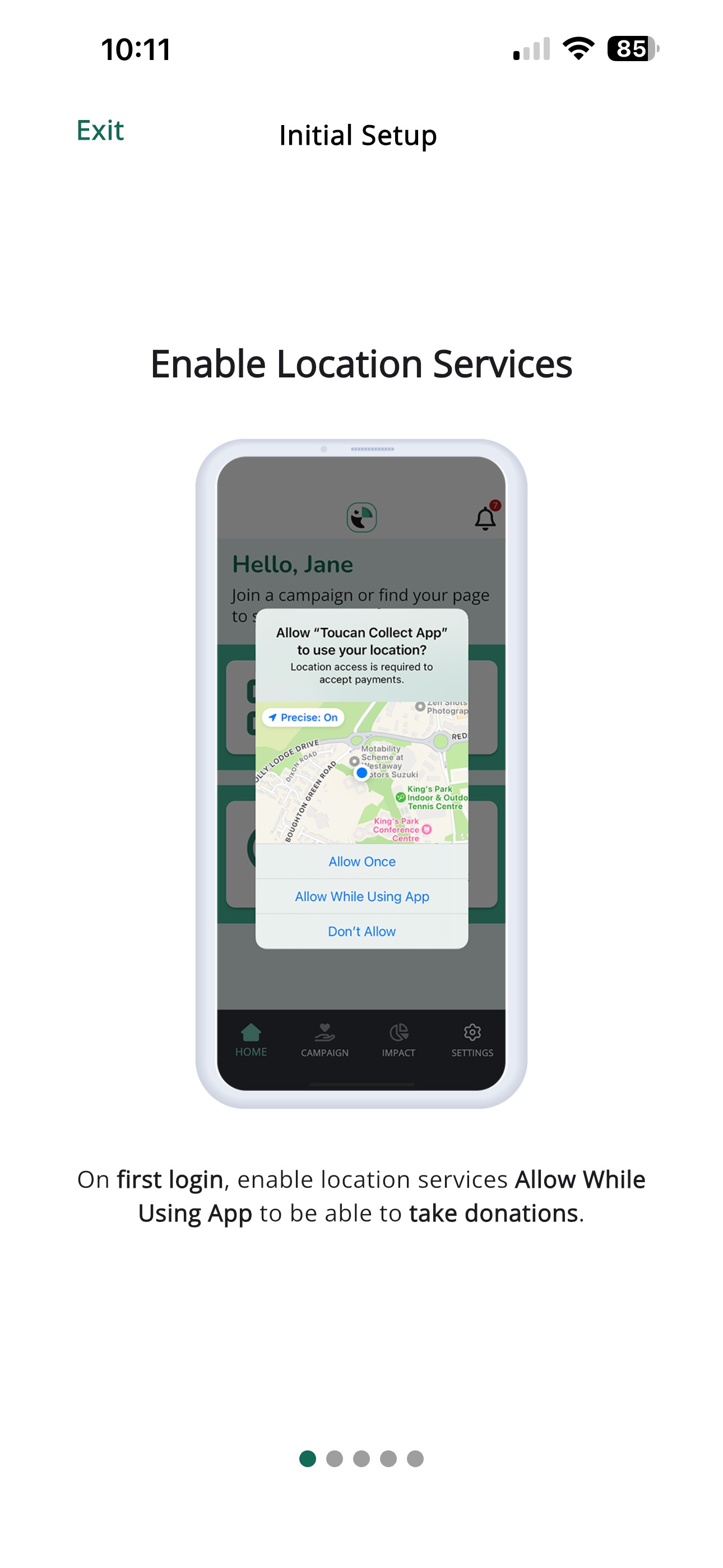
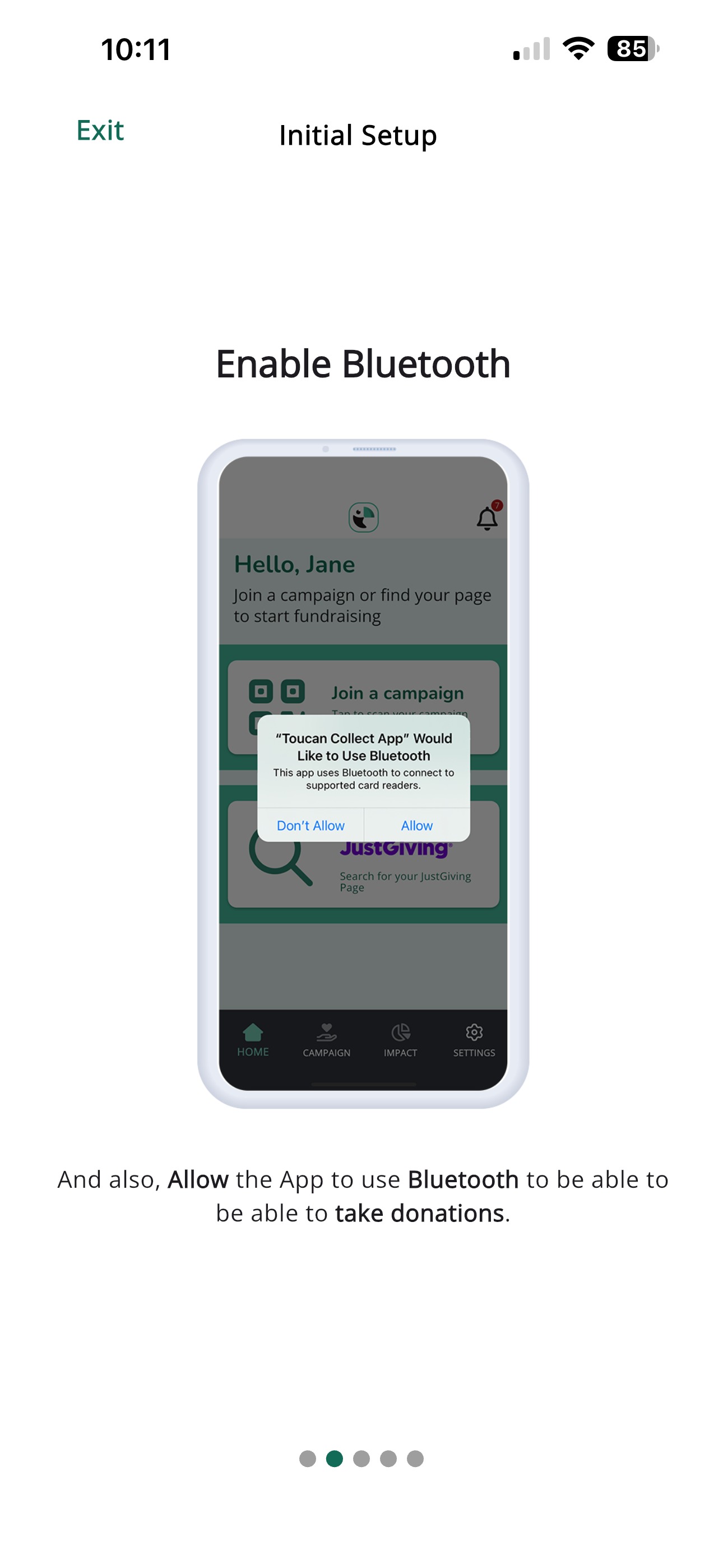
Users will also need to enable Location Services and Bluetooth in the app. Both are required for the app to work properly and to process donations.
When prompted, please select “Allow While Using App” for Location Services and “Allow” for Bluetooth.
5. Toucan Collect App - home screen
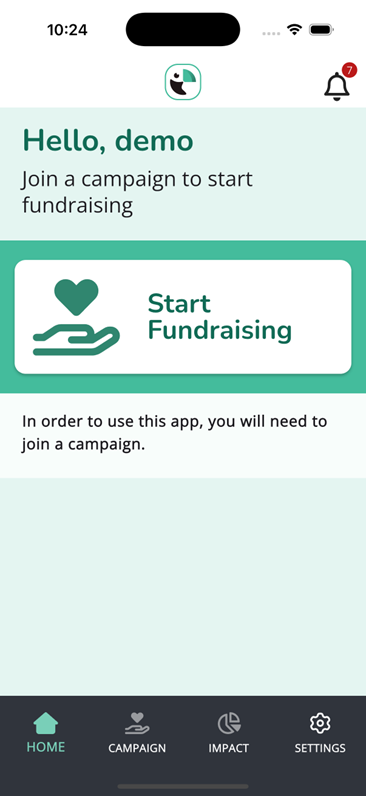
When you log into the Toucan Collect app for the first time, you’ll see the home screen. Before you can begin using Toucan Collect, simply tap Start Fundraising to get started.
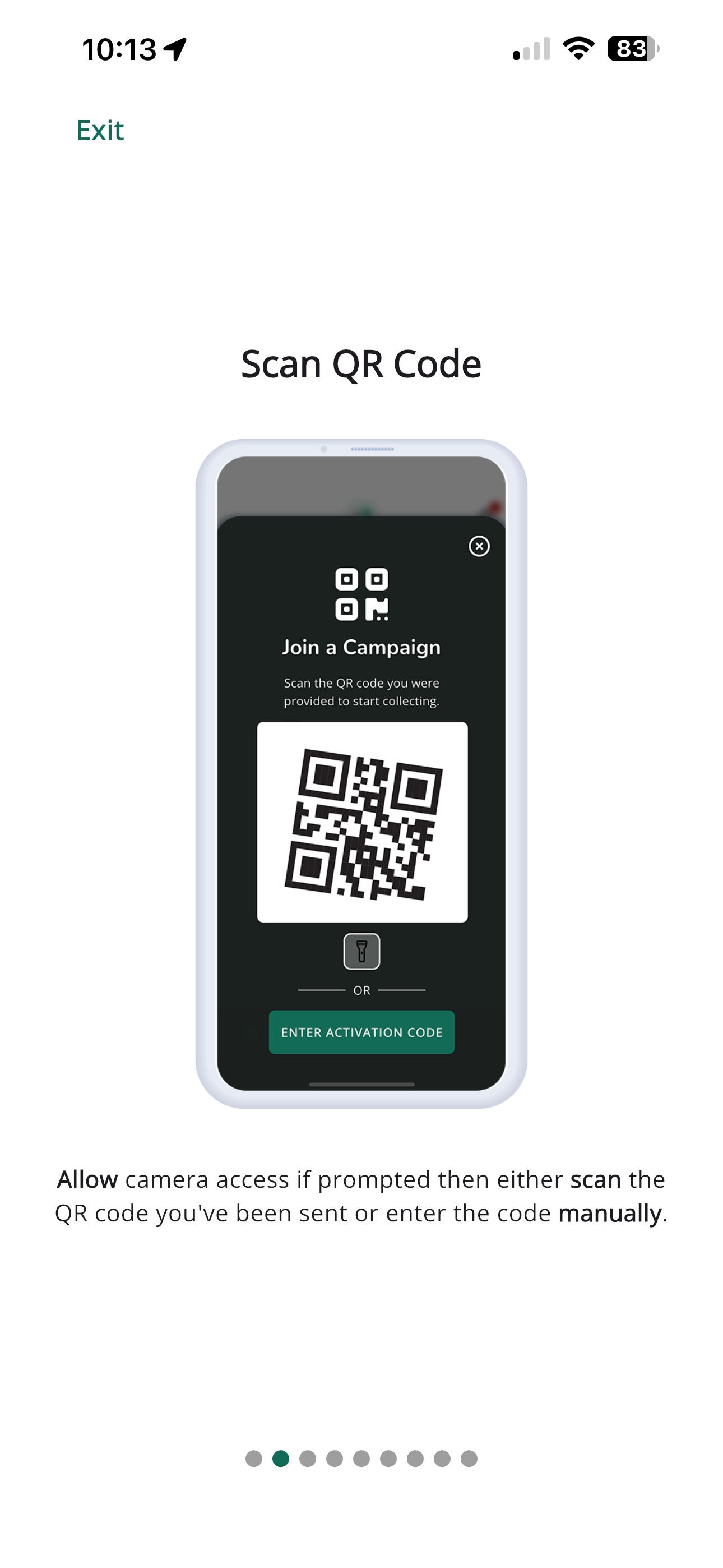
Tap the large square QR Code icon. This will open the QR code scanner screen.
If prompted, please select Allow to give the app access to your camera.
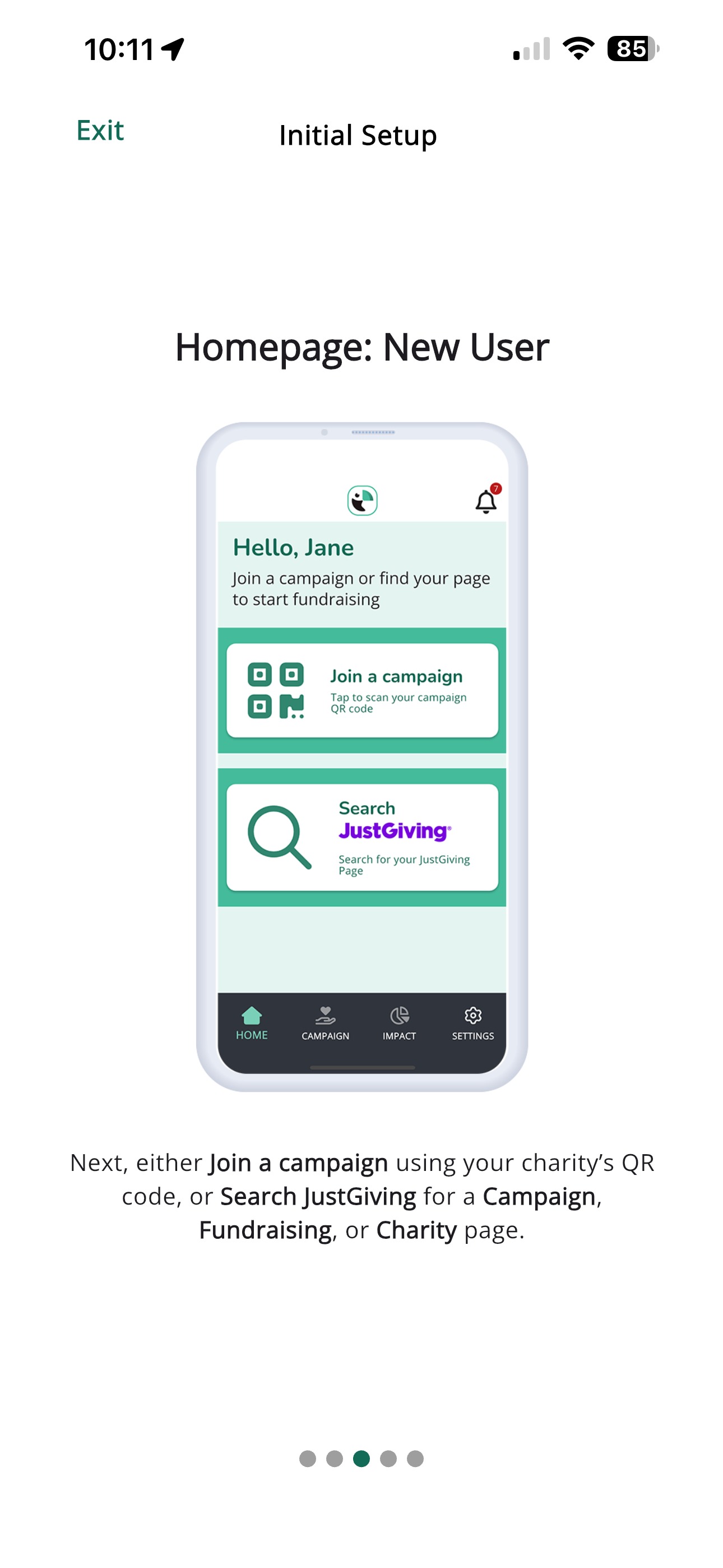
Only when the QR code scanner is open can you scan the QR code provided by your charity. This step links your Toucan Collect device to the charity’s campaign. If you haven’t received a QR code, please contact your charity directly to request one.
If you’re unable to scan the QR code, you can enter it manually by tapping the Enter QR Code button
After scanning or entering the QR code, you’ll see the charity’s campaign page. Please check that it’s the correct campaign, then tap Join the Campaign to continue.
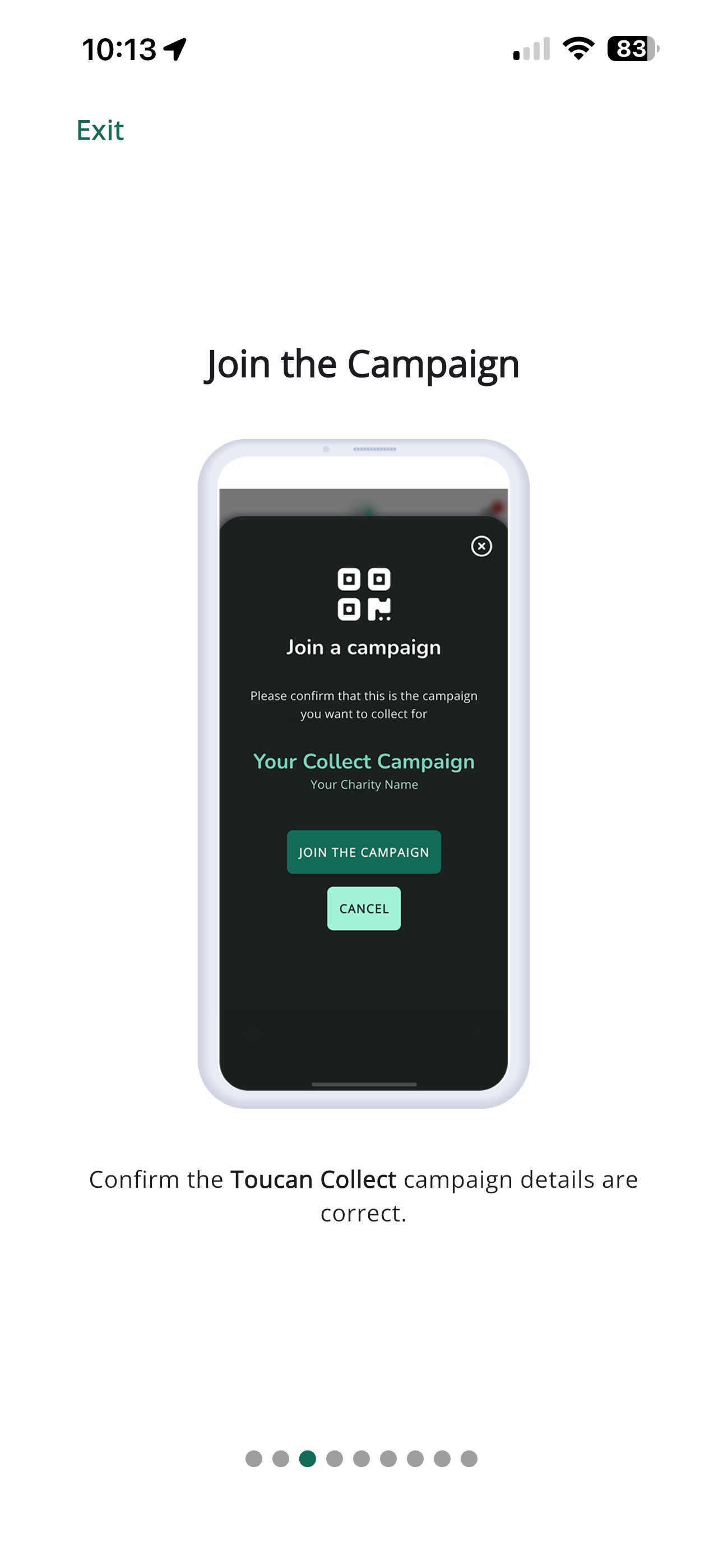
Toucan Collect will only work once your device is linked to an active fundraising campaign from your charity.
6. You are ready to start collecting!
Head back to the home screen.
You’ll see that an active campaign is now linked to your account, and you’re ready to begin collecting donations.
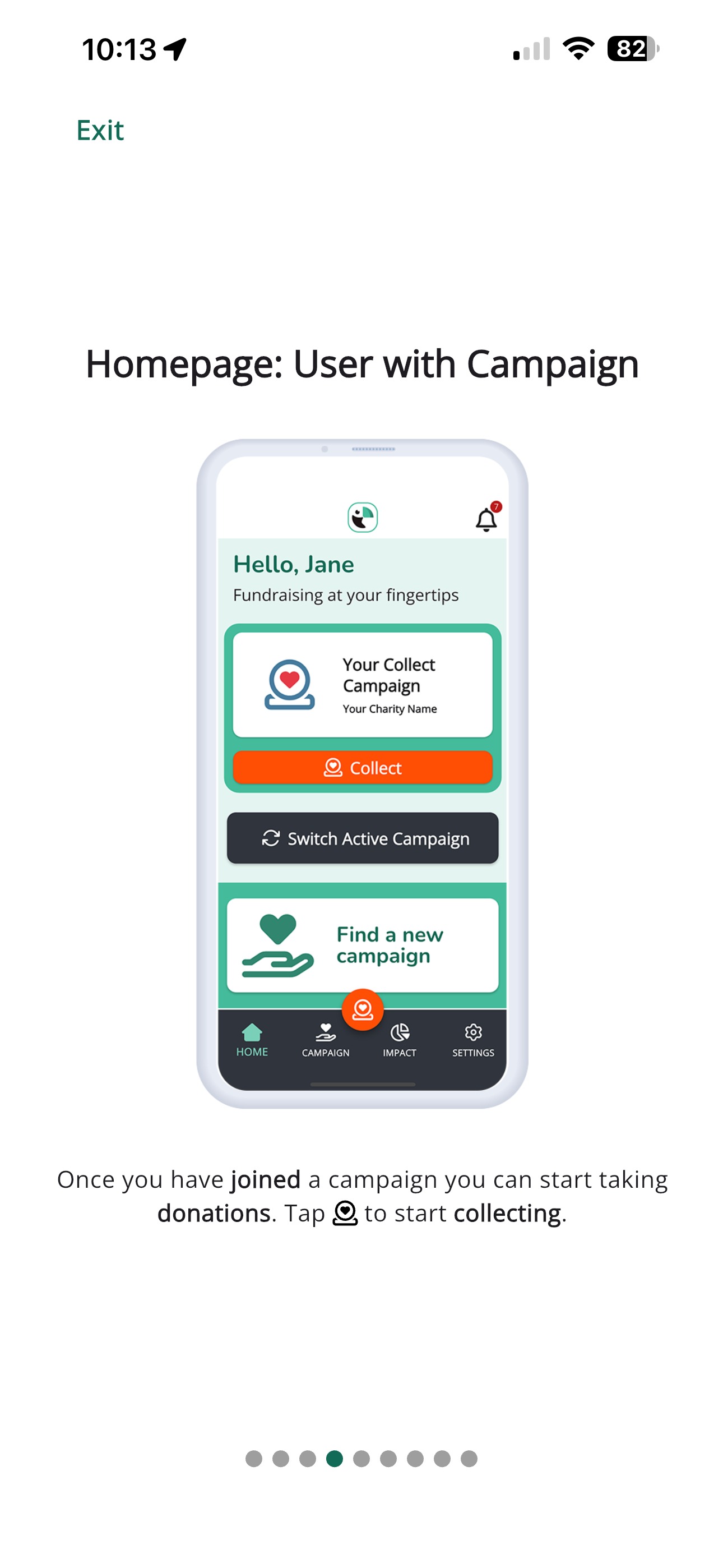
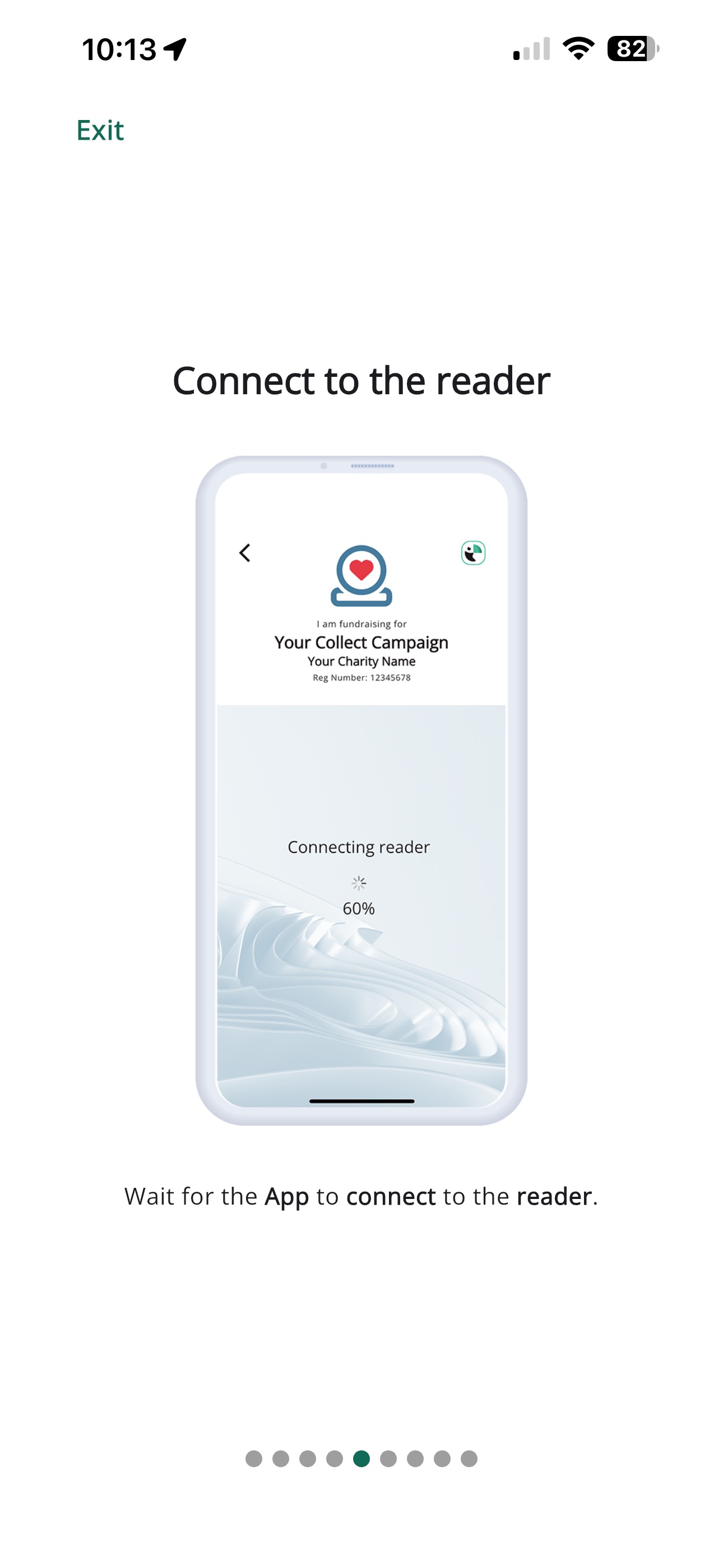
Tap the orange £ slot icon to open the payment reader. You can also access the payment reader by selecting Campaign from the footer menu.
Once the payment reader is open, you’ll see a range of preset donation amounts and/or the option to enter another amount. These amounts are set by the charity.
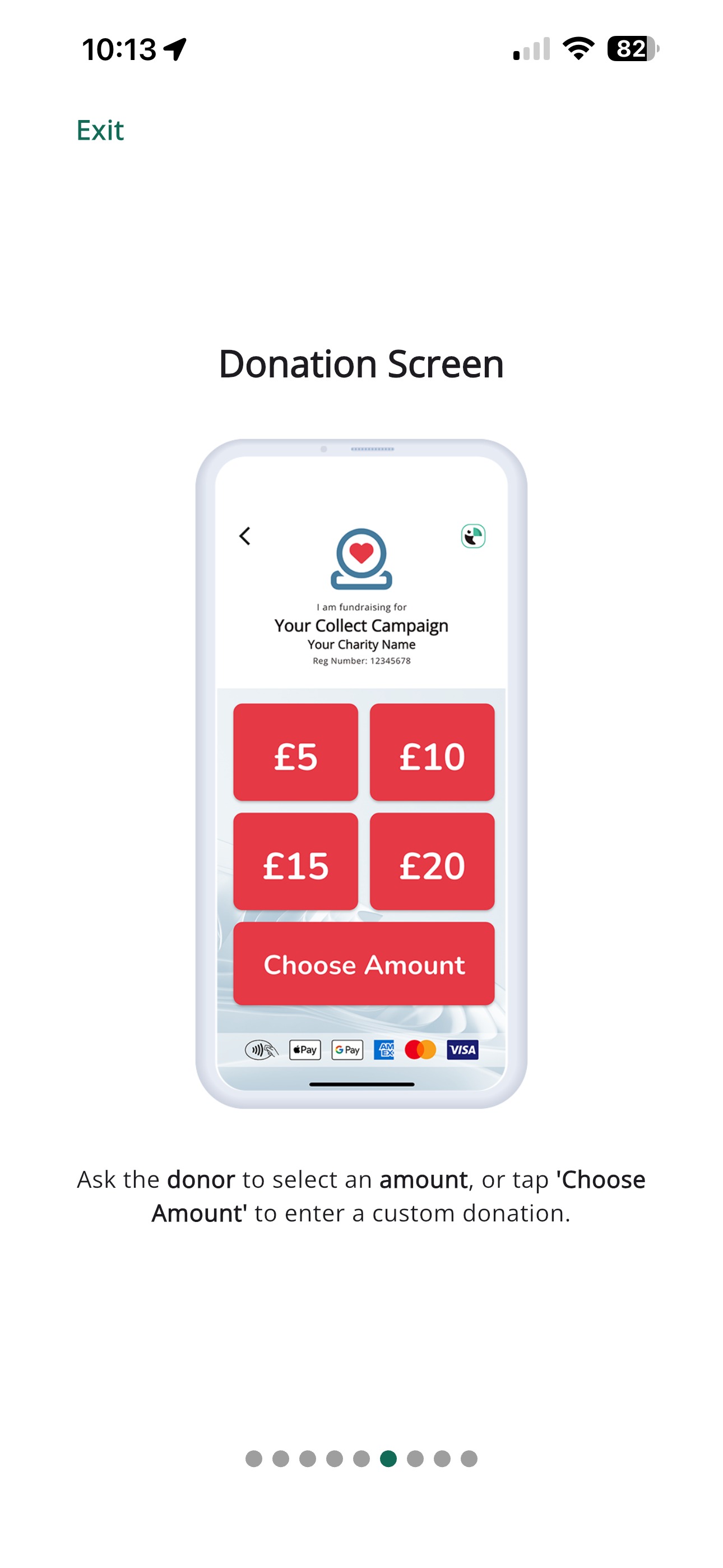
To make a donation, the donor can simply select one of the preset amounts or tap Other Amount to enter a custom donation of up to £9,999.
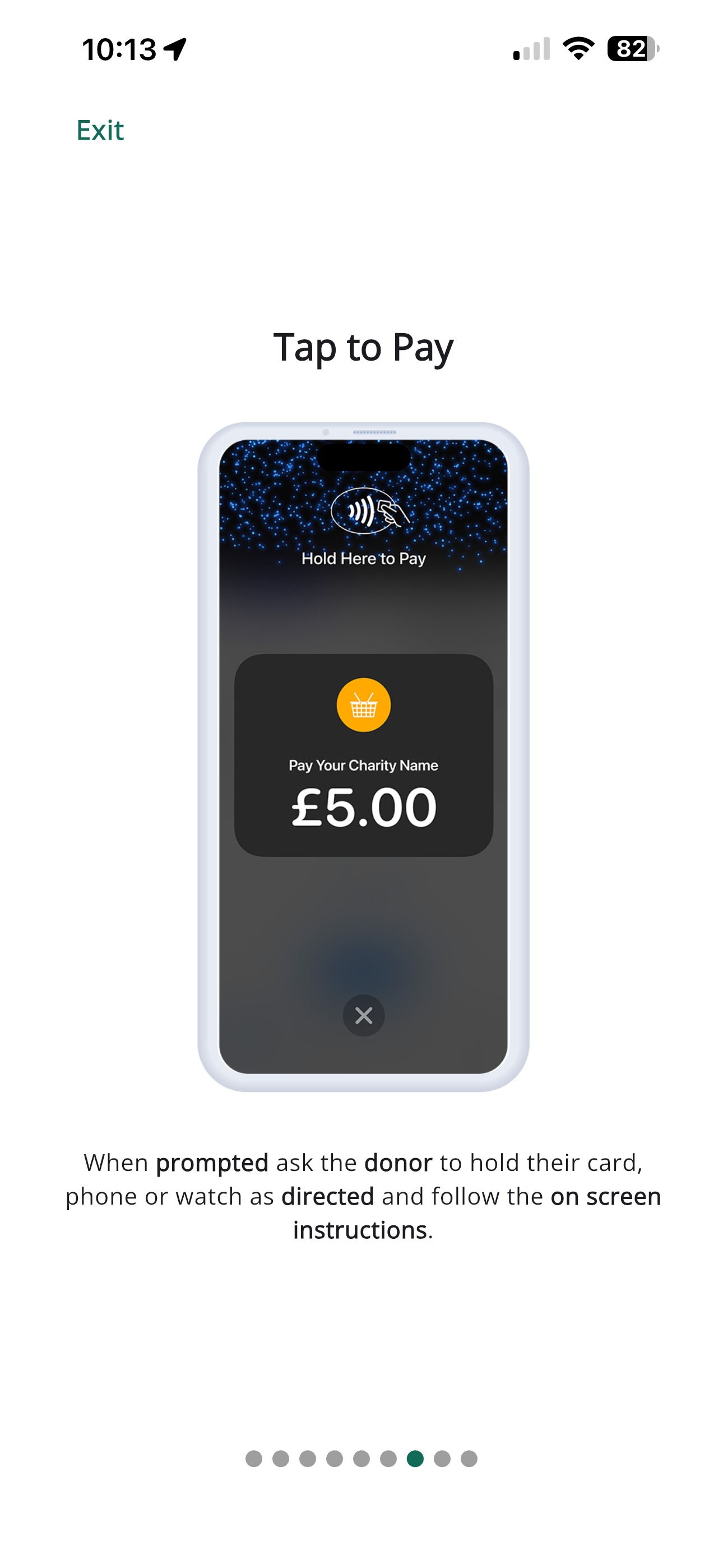
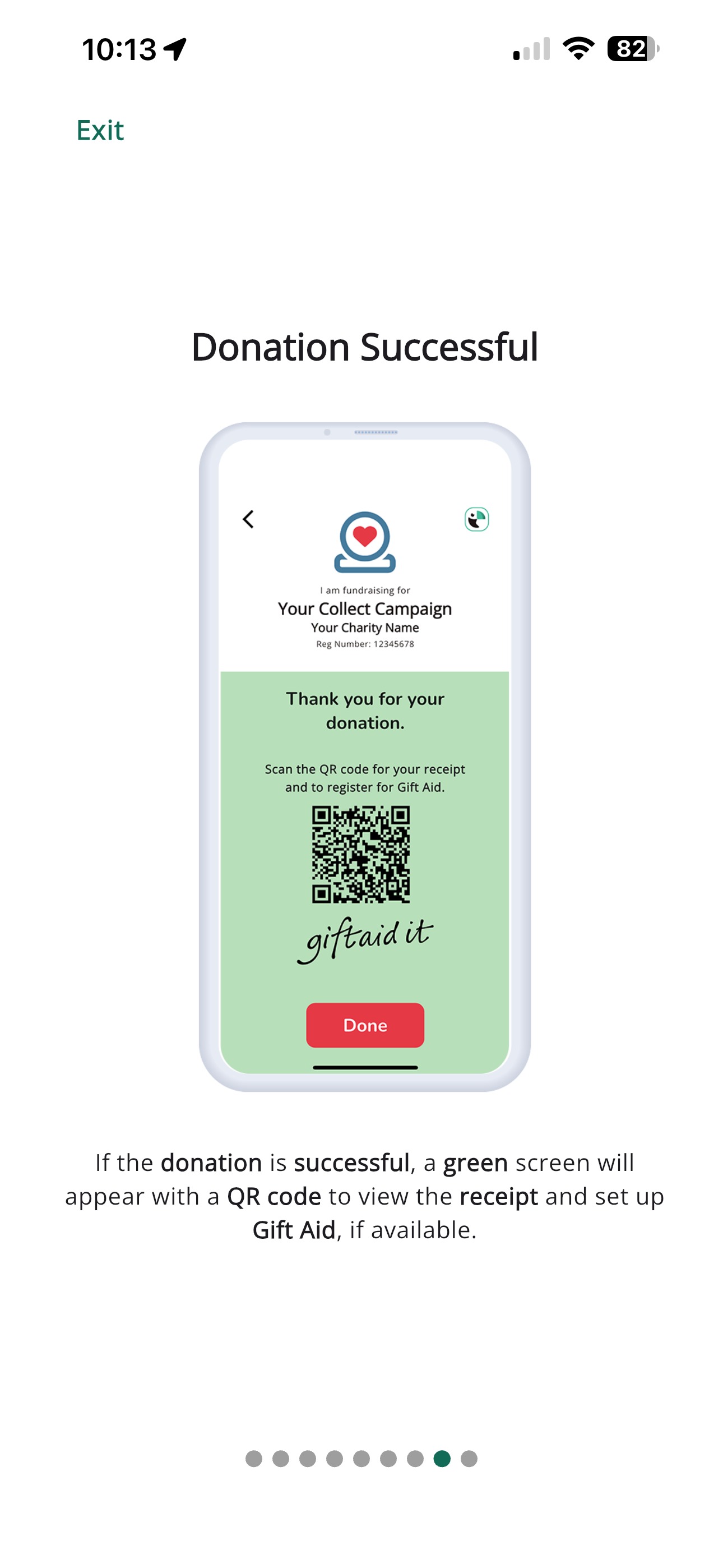
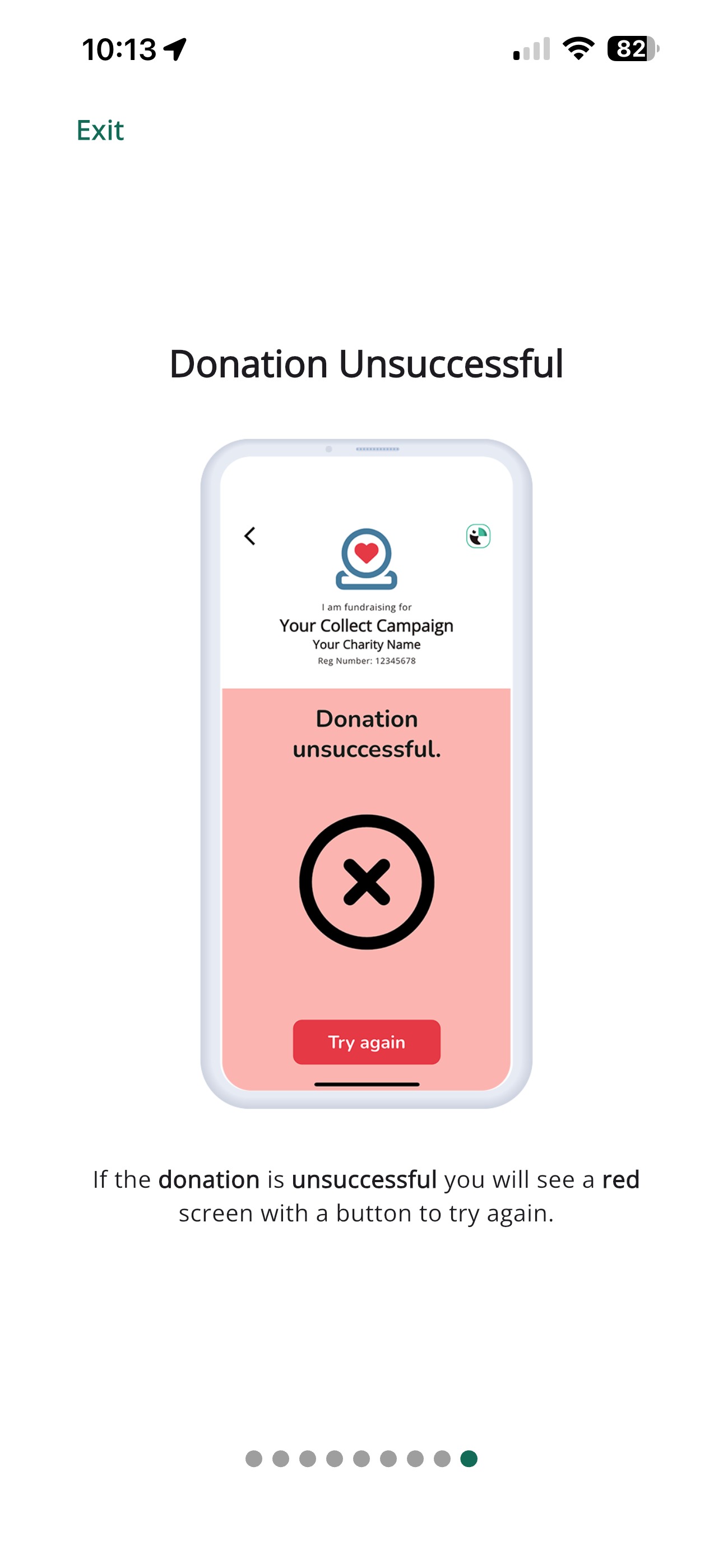
The donor will then see the payment screen. They can tap their card or phone to complete the donation. Once the payment is approved, you’ll be returned to the donation amount screen, ready for the next donation.
7. Setting up Goals and Monitoring Impact
You can set up your fundraising Goals within the Toucan Collect app. Tap the Impact icon to get started.
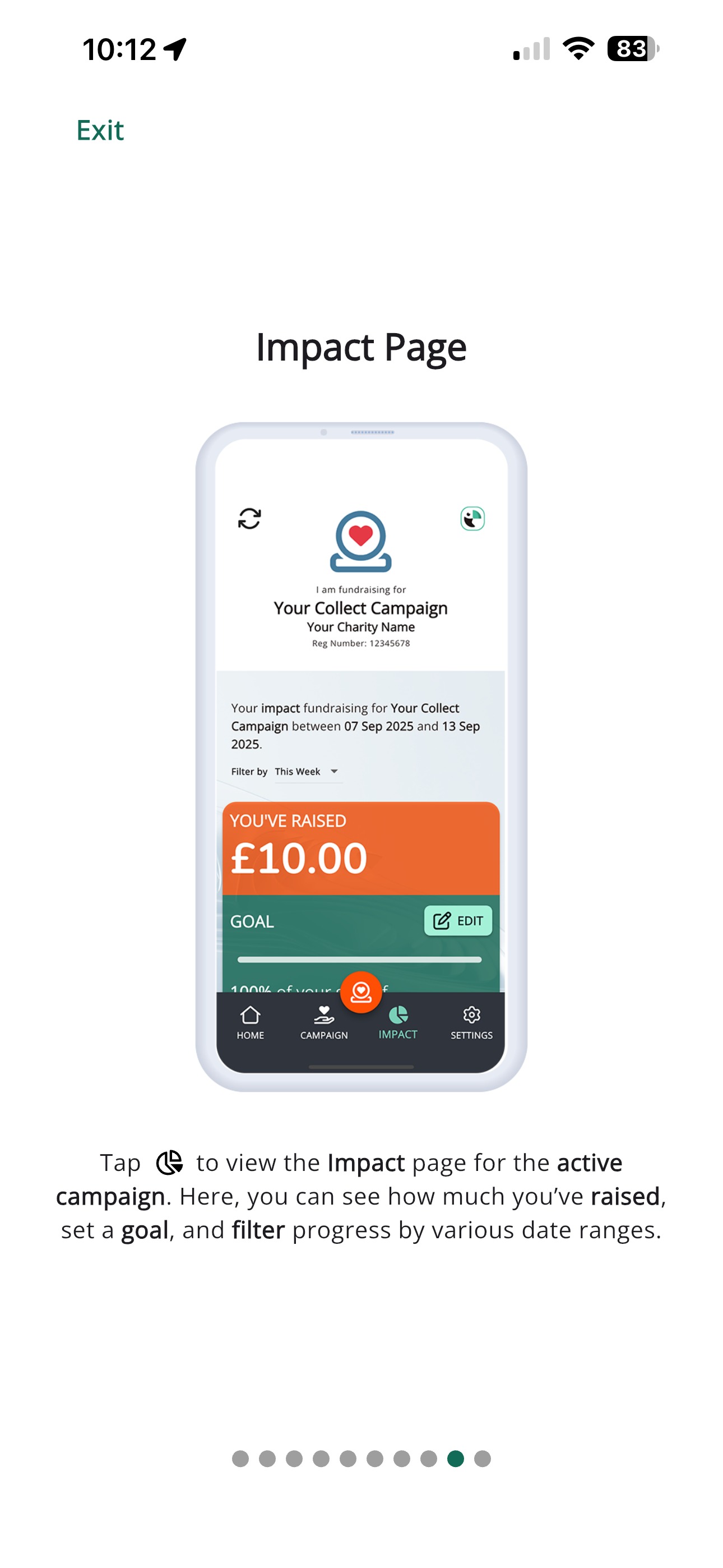
Tap the Edit icon to enter your fundraising goal, then press Save. The Toucan Collect app will automatically track your donations and show you how much you’ve raised toward your goal.